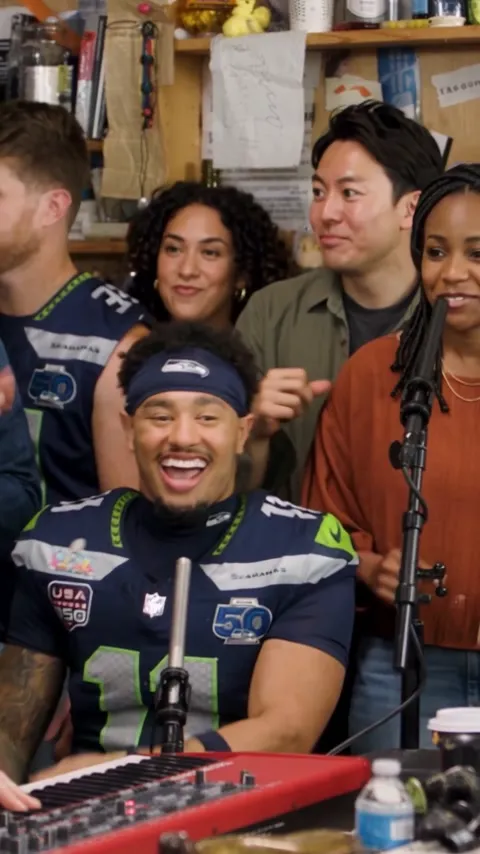
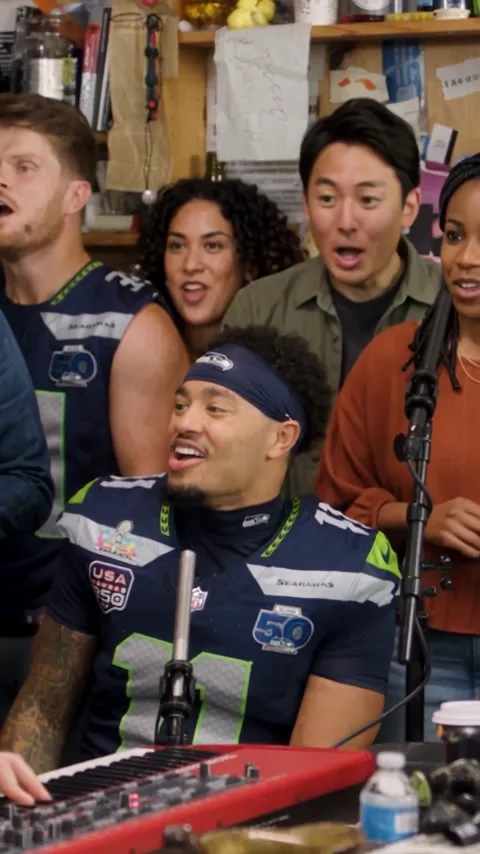
From portrait to performance
How to make an AI Tiny Desk video, from cast to final cut
Begin with the scene you want people to recognize. A five-person band joke needs a different cast from a solo performance or a pet cameo. This workflow helps you prepare the inputs, evaluate an AI video generator and finish a short clip without confusing a reference preview with a completed render.
Explore the cast & referencesBefore you render Explore references and preview your cast first. New renders need a signed-in account, 10 credits, photo permissions and an available studio. Check the live status in the generator before ordering.
1. Write the idea before choosing the AI video maker
Give the clip one job: surprise a friend, introduce a team or put a familiar pet on a tiny stage. Then decide who needs to be recognizable. A full band is useful when every person has a role; a solo can work better when a single face carries the entire joke.
Choose the output shape for where the video will be watched. A vertical frame leaves less room at the sides for text or extra faces. A horizontal performance needs a different crop when it later becomes a vertical post. Plan that decision before adding captions or framing a group.
2. Prepare one readable portrait for each role
Use a clear, front-facing image with even lighting and enough space around the head. Avoid heavily compressed screenshots, tiny faces and obstructions over the eyes or mouth. Save each performer separately and name the files by role so you can check the upload order.
In this studio, JPG, PNG and WebP images may be selected up to 10 MB each. Uploading shows a local preview. It does not create a finished performance. Check the slots, replace any wrong portrait and get permission from each person whose photo you intend to use.
3. Compare the reference with your intended scene
Outstanding offers a 15-second vertical band video for Five and Solo, or a 10-second landscape duet, with 480p or 720p output. Soul & Hip-hop offers six 10-second video templates, including a pet option and a four-person group-photo option. Its frame defaults to the source ratio, with 9:16 or 16:9 reframing available.
A reference helps you judge the arrangement, camera distance and pace. Inspect where faces appear, whether the framing leaves room for a caption and whether the musical mood fits the joke. It is more useful to check those details than to choose a template solely because its name is trending.
Compare the source videos, sign in and check your balance before rendering. The studio sends the selected video as reference_videos and your portraits as reference_images to Seedance 2.0 through Replicate, tracks the task and saves the MP4. Keep the task ID if submission cannot be confirmed; the studio does not automatically create another paid prediction.
4. Pick a tool for the stage you actually need
An AI video generator and a timeline editor solve different parts of the job. Generation creates or transforms footage from inputs. Editing arranges footage you already have, controls the cut and prepares the final post. Check whether the service accepts your photos, supports the intended duration and permits your planned use before paying.
Higgsfield AI describes an image and video creative suite on its official site. Viggle AI describes character, motion and remix workflows. These are separate platforms with their own accounts and terms. This guide has not verified a dedicated Outstanding Tiny Desk template on either platform, and neither name identifies an integration with this studio.
CapCut’s online video editor documents trimming, cropping, splitting, captions and export controls. It can be considered for finishing footage you have permission to edit. A tool listing does not mean that every feature, music track or export option is included for free; inspect the current plan and export screen.
5. Review the performance before you share it
Once you have produced footage in a working generator, watch the full clip at normal speed and then pause around facial motion and scene changes. Check identity, hands, clothing, crop and audio timing. A convincing first frame does not tell you whether the rest of the performance holds together.
In your editor, keep the strongest section, place captions away from faces and compare the final crop with the actual posting format. Listen once on a phone speaker and once with headphones. Export a short review copy before spending time on a more elaborate edit.
Share only portraits and audio you are permitted to use. Explain that the clip is an AI parody when it might otherwise be mistaken for a real performance or endorsement. Keep the original files so you can correct a caption or replace a problematic shot later.
Is there a free AI video generator for this workflow?
Free access can mean a reference player, limited generation credits, an editor trial or an export with restrictions. Check what is actually included: finished downloads, resolution, watermark, commercial permissions and whether a subscription starts after a trial. A free preview is not the same as a free personalized render.
Tiny Desk AI’s references and local cast preview can be explored without purchasing a pack. The displayed concert cost is 10 credits, with packs priced at $9.99 for 10 credits, $19.90 for 30 and $29.90 for 50. Credits are described as valid for 180 days. Checkout and rendering depend on the live studio status. Stripe confirms pack payments before credits are added; model generation is a paid action, while browsing references remains free.
Sources & further viewing
Artist history and third-party tool descriptions are linked to their original sources. Product availability in this studio is described separately.
Put the idea on the desk.
Compare the Outstanding and Soul & Hip-hop references, choose the cast and see how your portraits fit.
Return to the studio